








How to Set Up Subscriptions on Shopify
To set up subscriptions on Shopify, you need a payment gateway that can charge a card again later and an app that sells and manages the subscription. Here is the full setup, step by step.
To set up subscriptions on Shopify you need a payment gateway that supports recurring charges and a subscription app.
Install the app, turn on its app embed, create a campaign (plans, discount, products), publish it and set up the customer portal.
Place one test order before you launch.
To set up subscriptions on Shopify, you need two things: a payment gateway that can charge a card again later, and an app that sells and manages the subscription. The gateway takes the money. The app builds the offer your customers see.
This guide covers the full setup, from the gateway check to your first test order. The steps use Essential Subscriptions, which is free. Comparing apps first? Our roundup of the best Shopify subscription apps has you covered. Not sure subscriptions fit your store yet? Read how Shopify subscriptions work, then come back.
What you need before you start
Check these four things first. Shopify sets them, so they apply to every subscription app.
A supported payment gateway. Subscriptions need a payment method that can be charged again without the customer at checkout. Shopify supports Shopify Payments, PayPal Express, Authorize.net, Adyen and Stripe. Adyen is only for businesses Adyen has already approved, and Stripe is only available to select merchants.
The online store. Essential Subscriptions doesn't support Shopify POS, so you can't sell its subscriptions in person. Products sold only by subscription (no one-time option) can be sold only on the online store.
Normal products. Shopify's own bundles (made with Shopify's bundles feature) can't be sold as subscriptions. Essential Subscriptions has its own volume bundles, which are pack sizes of a normal product.
No B2B or draft orders. B2B doesn't support subscriptions, and you can't add a subscription to a draft order.
Not sure your gateway works? A test order (step 8) will tell you.
Prepaid or pay as you go?
Every plan is either pay as you go or prepaid. Choose before you build, because prepaid works differently.
| Pay as you go | Prepaid | |
|---|---|---|
| How the customer pays | One charge per delivery | One payment for several deliveries |
| Example | Coffee every month, charged monthly | Deliver every 1 month, charge for 3 deliveries: one payment, three monthly deliveries |
| Orders | One order per charge | One order per term, with the deliveries attached to it |
| Renewal | Until the customer cancels | The next term is charged when the term ends, until the customer cancels |
Pay as you go suits most stores, like monthly coffee or refills every 8 weeks. For prepaid, "Charge for" must be 2 or more deliveries.
How to set up subscriptions with Essential Subscriptions
1. Install the app and turn on the app embed
Install Essential Subscriptions from the Shopify App Store.
On the Home page, find the Setup Guide. On the step Activate app embed in Shopify, click Activate.
In the theme editor, check that Essential Subscriptions is switched on under App embeds and click Save.
The embed is what shows the subscription widget on your product pages. You can add the Campaign Widget app block to your product page instead. You only need one of the two.
2. Create a campaign
A campaign is your subscription offer: which products it covers, how often orders ship and bill, the discount, and how the widget looks. You can run several campaigns for different products.
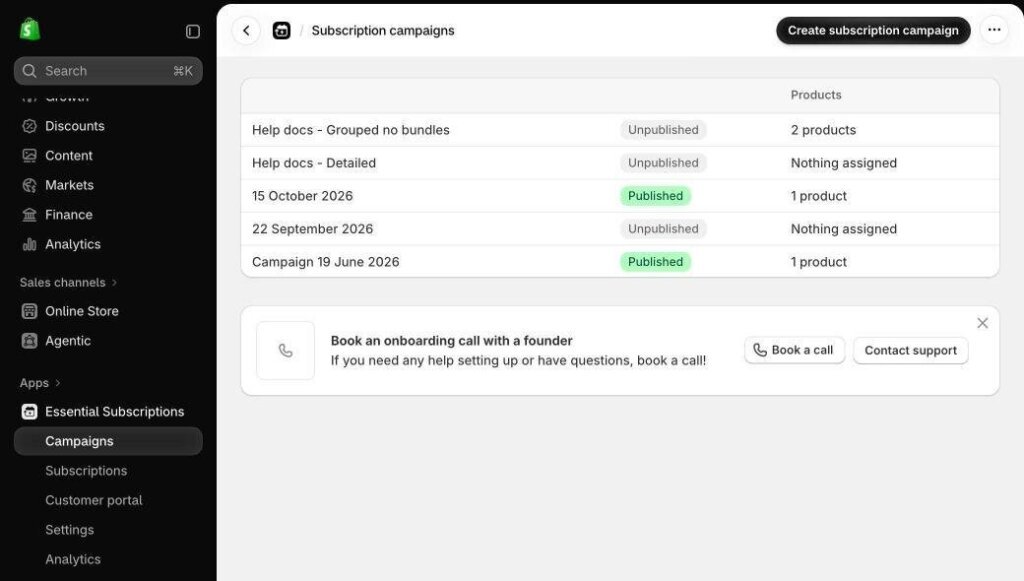
Open Campaigns and click Create subscription campaign.
Pick a template, or click Start from scratch. A template fills in sample plans, discounts and colors. Starting from scratch gives you one plan, Monthly, at 0% discount, plus a one-time purchase named "Just once".
3. Set up your plans
Each plan is one choice the customer can pick, such as every 2 weeks or every month. On the Purchase options tab, each plan has its own card. For each plan, set:
Deliver every: a number and days, weeks, months or years.
Billing policy: Pay as you go or Prepaid.
Charge customers on: the day they order, or a set weekday, day of the month or date of the year.
Discount: a percentage or an amount off. You can change it after a number of payments, for example 10% off for the first 3 payments, then 15%.
Subscription expires automatically after (optional): ends the subscription after a set number of payments. Left unticked, it renews until the customer cancels.
Customers can cancel after (optional): customers can't cancel until they've made this many payments.
Want the longer frequency to look attractive? Give it a bigger discount. You don't need many plans: one plan next to a one-time purchase is enough when subscribing is a nice add-on.
4. Add the optional extras
One-time purchase. Keep it so shoppers can buy once, or delete it to sell by subscription only.
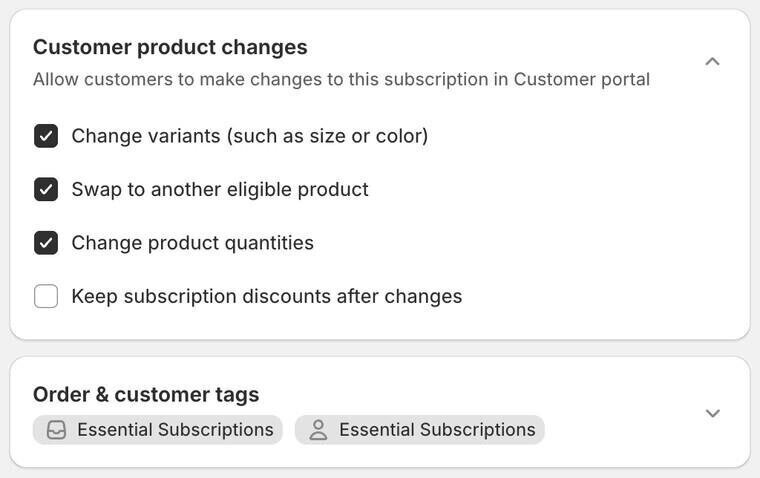
Customer product changes. All options start off. You can allow customers to change variants, swap to another eligible product, change quantities and keep subscription discounts after changes.
1st order gift. Add free products to the first order of a plan. The gift is free at checkout and isn't part of the recurring orders. Gifts only unlock with a subscription.
Volume bundles. Offer a better price on bigger packs, such as a 3 pack. The bundle discount comes off the price after the plan discount.
5. Assign products and publish
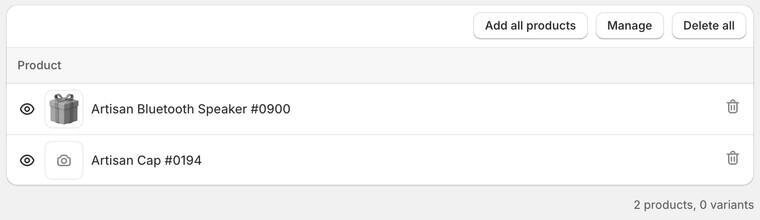
Open the Products tab. A campaign needs at least one product before you can publish it. Pick whole products or single variants.
Style the widget on the Widget and Style tabs and check the live preview.
Click Publish.
Once published, every save goes live straight away. Unpublish or delete a campaign and new customers can't subscribe. Existing subscriptions keep billing on their own terms.
6. Set up the customer portal
The customer portal is where subscribers skip an order, pause, resume, cancel and update their address and payment method.
Open Customer portal in the app and click Add app extension.
In the Shopify editor, add the Essential Subscriptions extension to your customer account pages and save.
Add a menu item to your customer accounts that points to the new Subscriptions page.
Go back to the app and click I've done this.
7. Review the emails and the payment settings
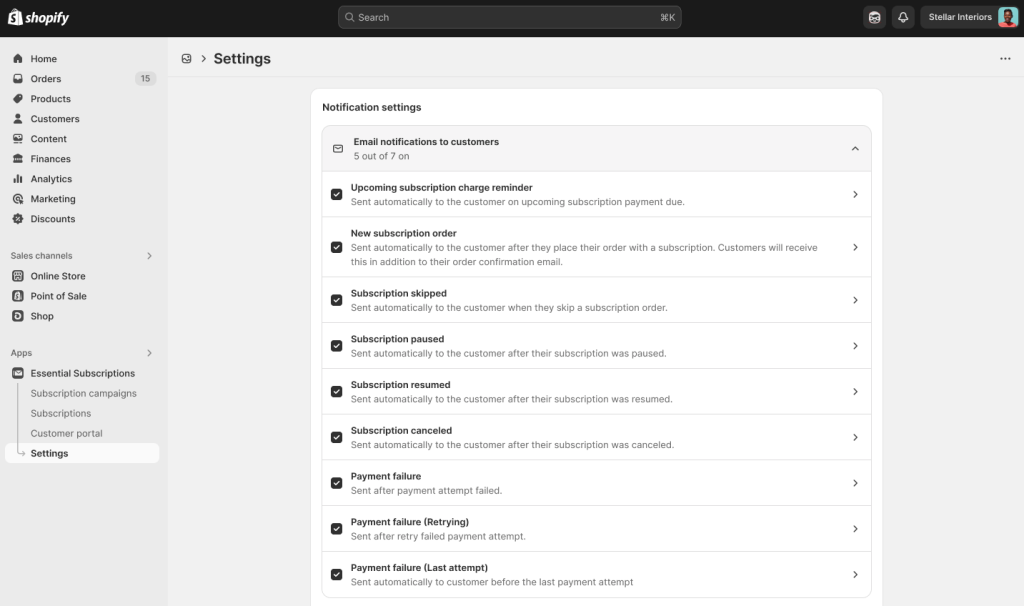
Go to Settings and open Email notifications to customers. The app emails customers about upcoming charges, new subscriptions, skipped orders, pauses, cancellations and failed payments. The important ones are on by default, and you can edit the wording.
Then open Billing and inventory settings. The defaults for a declined card are 3 retries, 7 days apart, then the subscription is cancelled. You can change the number of retries (0 to 10), the gap (1 to 14 days) and whether the final action is pause or cancel.
8. Place a test order
Open a product page that has your published campaign and check the widget shows your options.
Pick a subscription option, add it to the cart and complete checkout.
Open your customer account and check the subscription is there.
In the app, open Subscriptions and check it shows as Active.
What happens when a payment fails
Charges run once a day, around midday in your store's time zone, not at the time the customer first bought. A declined card starts the retry process you set above. While retries run, any order due before the next retry is skipped, and the customer gets the "Subscription order skipped" email if you have it on.
Two details are easy to miss. After the final attempt, no payment failure email goes out, so the last one customers get is the "before last attempt" email. And orders that fail because a product is out of stock send no payment failure email at all.
Keep subscribers who try to leave
You can ask customers why they cancel or pause, then show one matching offer before they confirm. "Too expensive" gets a discount. "Too much product" gets a skipped order. Both surveys are off by default. Turn them on under Customer portal, in the Retention card.
Moving subscribers from another app
Yes, you can move from Seal, Recharge or another subscription app. Essential's support team imports active subscriptions in bulk from a CSV export, even if you only have a few. The customer's payment method must be saved in Shopify (Shopify Payments, Shop Pay or PayPal). Keep the old app installed until all subscriptions are moved, and cancel each one there before you activate it here.
FAQs
- Yes. It's free to install and free to use, every feature is included and there are no paid plans in the app. It adds no charges to your Shopify bill.
- No. The customer pays for the first order at checkout, and renewals follow the plan's billing schedule. You can set the charge day for renewals.
- No. To get a similar effect, sell a box as one product and offer the subscription on it, or use volume bundles to give a bigger discount on bigger packs.
- In the customer portal. They sign in to their account, open their subscriptions and click Cancel subscription. You can also cancel for them in the app. If a plan has "Customers can cancel after", they can't cancel until they've made those payments.
- No. Turning off the app embed or unpublishing a campaign only stops new sign-ups. Existing subscriptions are separate contracts in Shopify, so cancel them in the app first. If you uninstall, Shopify cancels the app's subscriptions that haven't ended 48 hours later.
- That depends on Shopify's discount combination rules. When you create a discount code in Shopify, the Purchase type setting lets you choose one-time purchases, subscriptions or both.
Wrap-up
Check your gateway, pick prepaid or pay as you go, publish one campaign on one product and place a test order. That's a working subscription store. Essential Subscriptions is free, so you can start today.
Written by
Content and SEO specialist at Essential Apps. 8+ years in digital marketing, with the last 3 spent deep in the Shopify space, understanding how merchants grow and what gets in the way.