








How to Edit the Announcement Bar on Shopify: A Complete Guide
Learn how to edit the announcement bar in Shopify with the Essential Announcement Bar app. Customize, schedule, and boost sales with easy setup.
The announcement bar is one of the simplest yet most effective tools in your Shopify store. It’s the thin banner at the top of your website that instantly grabs attention, communicates key updates, and guides visitors toward action. Whether you’re promoting a sale, sharing shipping deadlines, or announcing restocks, learning how to edit the announcement bar in Shopify can make a real difference in your store’s conversions.
In this guide, we’ll explain why announcement bars matter, what makes them effective, and how to easily create and customize one using the Essential Announcement Bar, a powerful and flexible Shopify announcement bar app designed to make your life easier.
Why You Should Use an Announcement Bar
A well-designed Shopify announcement does more than display information, it influences how customers behave. Announcement bars are valuable because they:
Drive attention to key offers: Highlight limited-time deals, discount codes, or free shipping goals.
Build trust and transparency: Display shipping times, store updates, or stock availability.
Improve engagement: Encourage users to click, explore, and act on your promotions.
Reduce support tickets: By communicating important updates upfront, you minimize repetitive customer questions.
When used strategically, a simple banner can set the tone for your entire website. And with the Essential Announcement Bar, you can create professional, eye-catching messages without touching a line of code.
Why Use the Essential Announcement Bar
If you’re tired of the basic Shopify announcement options, the Essential Announcement Bar Shopify app gives you complete creative control. It’s more than just a banner, it’s a customizable communication tool that fits seamlessly into your brand design.
Here’s what makes it stand out:
Fully customizable text, colors, and backgrounds.
Schedule start and end dates for sales or events.
Add emojis, links, and multiple language support.
Place banners anywhere across your store: homepage, collections, or product pages.
Combine it with countdown timers to add urgency and increase conversions.
Whether you’re preparing a Shopify announcement for Black Friday, a new product launch, or a limited-time offer, this Shopify announcement bar app makes it fast and flexible.
How to Edit the Announcement Bar in Shopify (Step by Step)
Editing your announcement bar in Shopify is quick and flexible with the Essential Announcement Bar. You can control every detail, from colors and typography to animation speed, placement, and even call-to-action buttons, without touching code. Here’s how to do it from the start.
Step 1: Install the App
First, download and install the Essential Announcement Bar App from the Shopify App Store. Once added, open it directly from your Shopify dashboard.
Step 2: Create a New Announcement
Click Create New Announcement to start. This will open a clean editor where you can configure everything about your banner.
Step 3: Choose the Type of Announcement
Select your preferred announcement type based on your goal:
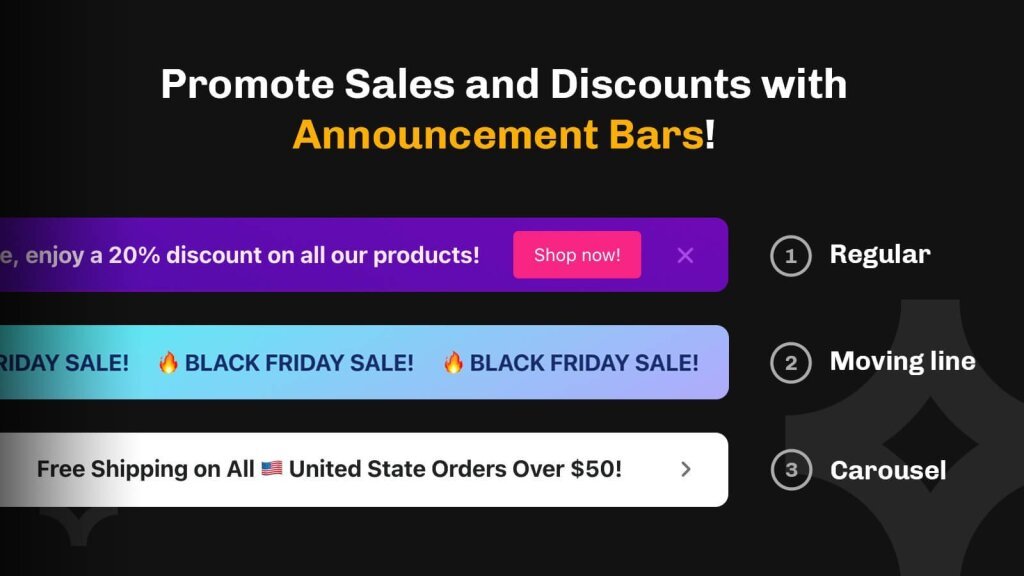
Simple banner: perfect for short, direct messages.
Running line: displays your text as a scrolling ticker for attention-grabbing motion.
Multiple rotating messages: lets you show several announcements in rotation with adjustable timing.
Choose what fits your campaign best and continue to the content section.
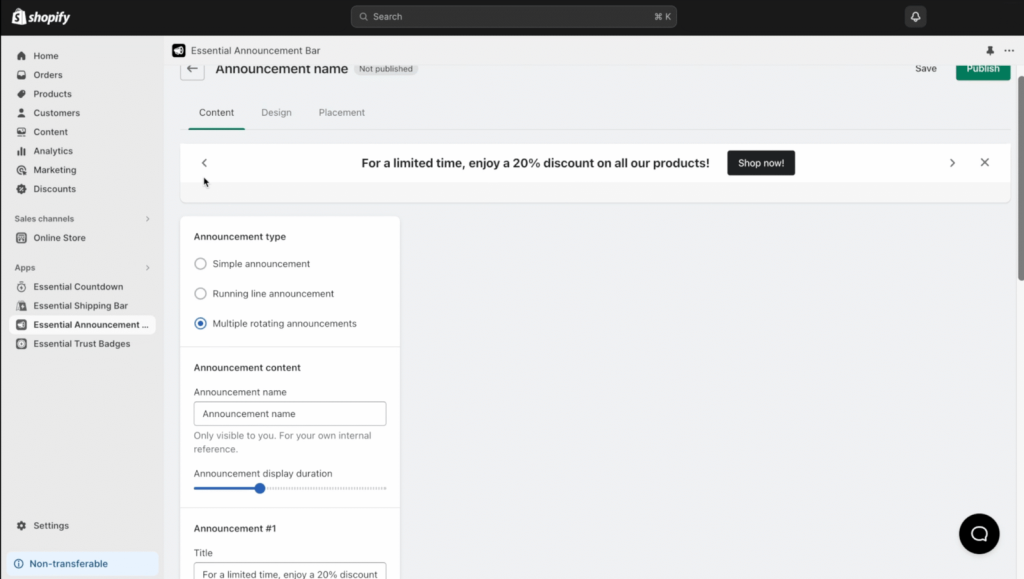
Step 4: Add Content and Configure Behavior
Now it’s time to write your announcement. Add your text, emojis, and links. You can:
Set rotation speed for running or rotating announcements.
Add or edit a CTA button (like “Shop Now” or “See Details”).
Decide if the banner should be dismissible, allowing customers to close it.
These small details make your Shopify announcement feel polished and professional.
Step 5: Customize the Design
Go to the Design tab to style your bar. This is where your creativity comes in.
You can:
Choose whether the banner is sticky (always visible as customers scroll).
Pick from ready-to-use templates or build a custom design.
Adjust background color, gradient, and opacity.
Select typography, text size, and color.
Customize the CTA button look, color, shape, hover effects, and borders.
Add icons, adjust border radius, and fine-tune spacing for a balanced layout.
All design settings are visual, so you’ll see real-time updates as you edit.
Step 6: Choose Where the Announcement Appears
Once your design looks right, decide where the banner should show up. In the Placement section, you can select:
Every page
Home page only
All product pages
Specific product pages
All collection pages
Specific collection pages
If you want full control, choose Custom Position. Copy the Announcement ID or Snippet code from the Placement tab, then add it to your preferred page template through Shopify’s Theme Editor or a Custom Liquid block. You can drag it to any position you like for a seamless fit.
Step 7: Preview and Save
Preview your bar across desktop and mobile. Once everything looks perfect, hit Save. Your new announcement will instantly go live, engaging customers the moment they visit your store.
Get Expert Help Anytime
Even though the setup is simple, our team is always here if you need help. The Essential Apps support team can guide you through complex setups, help you match your store’s theme, or create custom adjustments that go beyond what’s available in the app.
We’ve worked with hundreds of Shopify themes and layouts, so if you ever need your announcement bar to do something special, just reach out, we’ll make it happen.
Conclusion: Communicate Better, Sell Smarter
Editing your announcement bar doesn’t need to be complicated. With the Essential Announcement Bar, you can quickly create beautiful, high-performing banners that improve communication, boost engagement, and drive sales.
Start today and make your next Shopify announcement stand out for all the right reasons.
FAQs
- Open your announcement and go to the Design tab. There you can adjust background, text, button, and icon colors, as well as border radius and typography.
- Click Edit Content in your announcement. You can rewrite the message, change button text or link, and decide whether the banner should include a clickable CTA.
- Yes! In the Design tab, toggle the Sticky bar option. This keeps your announcement visible as visitors scroll through your page.
- When creating your banner, select Multiple rotating messages as the type. You can add multiple texts and set the rotation speed between them.
- Under Placement, choose Custom Position, copy the Announcement ID or Snippet code, and paste it into your Shopify theme. You can use the Custom Liquid block to place it anywhere on your site.
- Absolutely. Our support team can help adjust your announcement bar to fit your theme perfectly or build unique customizations not available inside the app.
Written by
Milda Gaigalaite
Content and SEO specialist at Essential Apps. 8+ years in digital marketing, with the last 3 spent deep in the Shopify space, understanding how merchants grow and what gets in the way.