Sticky add to cart buttons keep your purchase option visible as customers scroll through product pages. This simple feature can reduce friction, keep buying intent in focus, and capture sales you’d otherwise lose to distraction or page navigation.
Most Shopify merchants don’t have this set up, which means their visitors are scrolling past the fold looking for a way to buy. A sticky button solves that problem instantly.
What a Sticky Add to Cart Button Does
A sticky add to cart button stays fixed at the bottom (or top) of the screen while visitors scroll through your product details, reviews, and images. Instead of scrolling back up to hit the primary add to cart button, customers see it constantly available.
This matters because it reduces the friction between interest and purchase. The longer someone has to hunt for the buy button, the more likely they are to abandon the idea.
Why Merchants Add Sticky Buttons
Longer product pages with extensive descriptions, reviews, and videos make sticky buttons essential. If your product content runs beyond the initial viewport, visitors will scroll and lose sight of your primary CTA.
Mobile users especially benefit. Scrolling back to the top on a phone is annoying enough that some visitors just leave. A sticky button keeps purchase intent alive.
High-AOV products or complex items with detailed specs also benefit from sticky buttons because customers often need to read more before deciding. The button stays accessible the entire time they’re making up their mind.
How to Add a Sticky Add to Cart Button on Shopify
Using Essential Slide Cart Drawer
The easiest way to add a sticky add to cart button is with an app like Essential Slide Cart Drawer, which adds a persistent cart button that stays visible as customers scroll. The app installs directly into your Shopify store with no code required.
Installation takes minutes. The app integrates with your existing cart, syncs product data automatically, and works on both desktop and mobile. You’ll see the sticky element appear on all product pages right after activation.
Essential Slide Cart Drawer also gives you control over button styling, positioning, and messaging. You can match your brand colors and adjust when the button appears (for example, only after scrolling past the primary add to cart).
Manual Setup with Code (Advanced)
If you prefer a custom approach, you can add CSS and JavaScript directly to your Shopify theme. This requires access to your theme code editor and some development knowledge.
The basic approach involves creating a fixed or sticky positioned element and targeting it with CSS. You’d add a button in your product template, style it to stay visible during scroll, and handle the click action to add items to cart.
Manual setup takes longer but gives you full control over appearance and behavior. Most merchants prefer an app because it’s faster and doesn’t require maintaining code updates.
Best Practices for Sticky Add to Cart Buttons
Not all sticky add to cart buttons work the same. Here are some tips on getting the most out of yours.
Position It Below the Fold
Place the sticky button far enough down the page that it only becomes useful after scrolling. If your primary add to cart button is already visible, a sticky duplicate just clutters the screen and confuses customers.
Set it to appear after the user scrolls past your main product image or first description section. This keeps the initial experience clean while providing convenience for scrollers.
Make It Distinct but On-Brand
Use a contrasting color so the button stands out from your page content. It should grab attention without feeling like spam or an intrusive popup.
Match your brand colors and typography so it still feels like part of your store. Consistency matters more than novelty.
Include Key Product Info
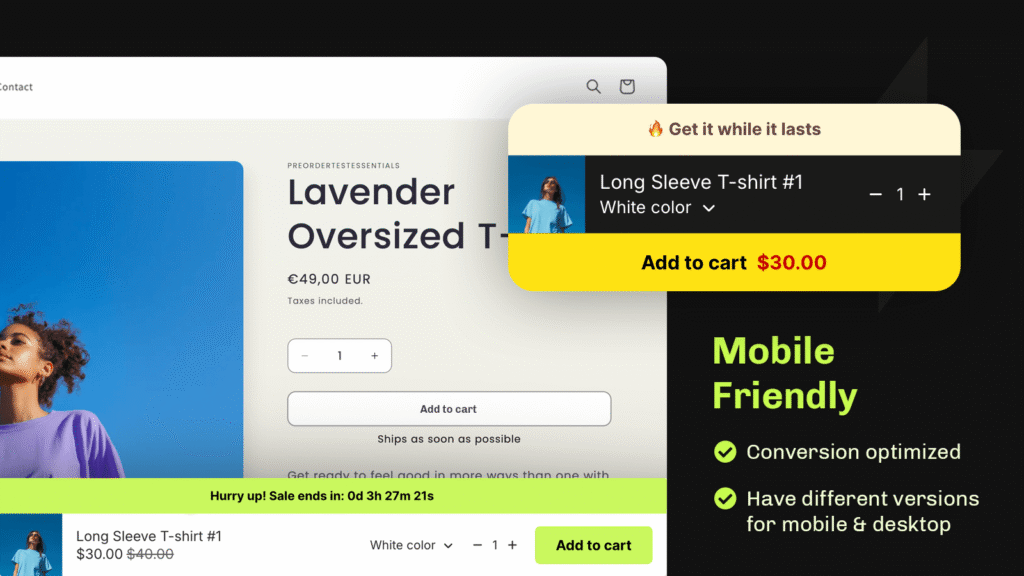
Show the selected variant, size, or color next to the button so customers know exactly what they’re adding. If someone scrolls down and comes back to the sticky button, they should instantly remember their choice.
Some sticky buttons also display the price again, which reinforces the product value as they scroll through reviews and details.
Test on Mobile First
Mobile visitors have less vertical screen space, so a sticky button takes up more real estate. Make sure it’s sized appropriately and doesn’t cover essential product content.
Check that the button still works smoothly when there are multiple variants, custom options, or quantity selectors. Mobile forms need extra attention because fingers are less precise than mouse clicks.
Common Sticky Button Mistakes
A few simple decisions can make or break your sticky add to cart button’s success. Here’s a list of things to avoid.
Making It Too Aggressive
A button that appears immediately on page load before customers have time to read anything feels pushy. Let them explore first, then remind them with a sticky option.
Similarly, avoid animations that flash or shake. A simple, clean appearance works better than anything that feels like it’s fighting for attention.
Not Testing Cart Functionality
A broken sticky button tanks conversions fast. Always test that clicking it actually adds the correct item to cart, handles variants properly, and doesn’t create duplicate entries.
Test on multiple devices and browsers. What works on desktop Chrome might break on mobile Safari or Firefox.
Ignoring Accessibility
Make sure the button has proper contrast so it’s readable for users with vision issues. Include clear text, not just an icon. Ensure keyboard navigation works if someone tabs through the page.
Measuring Impact
Track add to cart clicks from the sticky button separately from your primary button. Most Shopify apps and analytics tools can show you which button gets more engagement.
Compare your conversion rate and AOV before and after adding the sticky button. Even a 2-3% improvement in conversion rate is meaningful on high-traffic stores.
Pay attention to which product pages get the most use. Long-form product pages or items with detailed reviews will show higher sticky button engagement.
Should Every Store Add One?
Short product pages where everything fits on one screen don’t need sticky buttons. If most of your customers see the add to cart button without scrolling, this feature adds little value.
But if you have detailed descriptions, customer reviews, size guides, or trust badges below the fold, a sticky button captures sales from people actively scrolling and learning before they buy. The cost-benefit is almost always positive.
Getting Started
Essential Slide Cart Drawer adds a sticky cart button in minutes and handles all the technical setup for you. Install it, customize the appearance to match your brand, and start capturing more conversions from your existing traffic.
Frequently Asked Questions
Can I add a sticky add to cart button without code?
Yes. Essential Slide Cart Drawer is a no-code app that adds a persistent cart button automatically when installed. You just customize the styling and placement in the app settings.
Will a sticky button slow down my Shopify store?
A well-built sticky button adds minimal performance impact. Essential Slide Cart Drawer is optimized for speed and doesn’t load heavy scripts that would slow page load times.
Does a sticky add to cart button work on mobile?
Yes. Sticky buttons are especially helpful on mobile because users don’t have to scroll back to the top to purchase. Essential Slide Cart Drawer is fully optimized for mobile and responsive to different screen sizes.
What’s the difference between sticky and floating buttons?
Sticky buttons stay at the bottom of the viewport as you scroll. Floating buttons hover over content and usually stay in one fixed position. Both work, but sticky buttons are less intrusive because they don’t overlap product images.
Can I customize how the sticky button looks?
Most sticky button solutions, including Essential Slide Cart Drawer, let you control color, text, position, and when it appears. You can match it to your brand and adjust when it shows based on scroll depth.