You’re launching a new product and want to capture sales before inventory arrives. Adding the product to Shopify is step one. Setting up presales so you actually collect those orders and payments is step two. Most merchants skip the presale setup and lose momentum between launch announcement and fulfillment.
Our team of developers spent years perfecting our presale tool and got plenty of knowledge and tips on the way. So here’s how to add a new product on Shopify and configure presale orders so you turn early interest into guaranteed revenue.
Add Your Product to Shopify First
Start in your Shopify admin and go to Products, then click Add Product. Fill in the basic details: product title, description, and images. Be specific in your copy because presale customers are buying on description and trust alone, not in-hand inspection.
Set your product type, vendor, and collections. This helps with filtering and organization as you scale. Upload high-quality images from multiple angles. Add a short video if you have one. Presale buyers want to visualize what they’re getting.
In the Pricing section, set your selling price, cost per item, and compare-at price if you’re running a presale discount. The compare-at price shows customers the regular retail price, which builds perceived value. Choose your tax settings based on your location and sales channels.
Set Inventory to Unavailable (Critical Step)
Before you launch, mark this product as out of stock or set the quantity to zero. This prevents accidental purchases through your normal sales flow. You’re creating a separate presale experience, not letting it sell as regular inventory.
Go to the Inventory section and set Quantity to 0. You can also toggle the “Track Quantity” option based on your preference. The goal is clear signaling: this product isn’t available now, but customers can reserve it.
Enable Presale Orders With Essential Preorder Back in Stock
This is where presale actually works. Essential Preorder Back in Stock lets you accept orders for products that are out of stock or not yet ready to ship. Customers still check out, payment processes, and you capture their order details and email address.
Install the app from the Shopify app store and open settings. Go to your product page in the app and toggle on “Accept Preorders.” Set your estimated delivery or restock date. This is the date customers will see; make it realistic so you don’t damage trust.
You can customize the preorder messaging on the product page. Change the button text from “Add to Cart” to “Preorder Now” or “Reserve Yours.” Use copy that emphasizes urgency and exclusivity. Essential Preorder Back in Stock lets you control this messaging so it matches your brand voice.
Set a preorder deadline if you want to. This caps the number of presale orders or creates urgency. Once you hit inventory, the Shopify presale app can automatically switch the product back to regular sale mode so you don’t oversell.
Configure Payment Collection
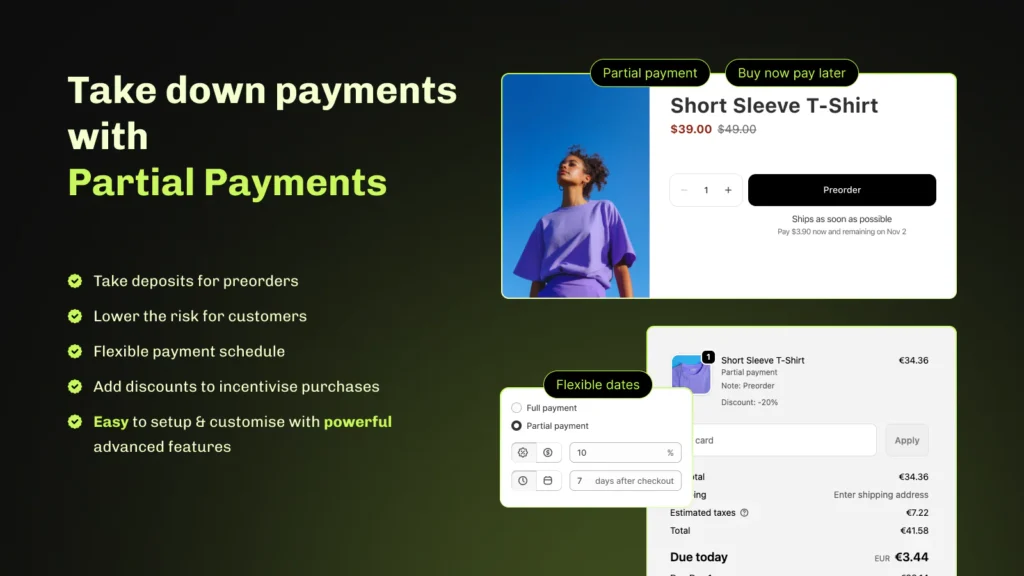
Decide upfront: do you collect full payment at presale or a deposit? Most merchants collect full payment for presales. This ensures commitment and gives you working capital before manufacturing or shipping costs hit.
In Essential Preorder Back in Stock settings, choose your payment model. Full payment is the default and simplest. You can also run deposit presales if your product cost is high, but this adds complexity at fulfillment time.
Test checkout as a customer to confirm the payment flow works and the preorder messaging displays correctly. Buy as a guest and as a logged-in customer. Check your email for the order confirmation.
Set Up Fulfillment and Notifications
When inventory arrives, you need a system to fulfill presale orders. Mark the quantity as in stock in your Shopify inventory. Essential Preorder Back in Stock tracks all presale orders separately, so you know exactly how many units you need to fulfill.
The presale app generates a report of all preorder customers. Export this or sync it to your fulfillment partner. You can also set up automated email notifications so customers get updates when their preorder ships.
Create an email template for preorder confirmation, shipping notification, and delivery. Keep it professional and on-brand. Customers bought without holding the product, so good communication reduces support tickets and builds loyalty.
Promote Your Presale
Traffic doesn’t automatically know about your presale. Add your presale product to your homepage, send an email to your list, and run paid ads if your CAC supports it. Presale conversions are usually higher because interested customers self-select.
In your email and ad copy, be clear: “Preorder now, ships [date].” Mention any presale discount. Use scarcity language without lying. “First 100 units available for presale” works if it’s true. “Presale closes [date]” creates deadline urgency.
Link from your homepage banner, footer, and collections. Presale customers convert faster, so make it visible.
Monitor and Adjust
Check your presale numbers daily. Are orders coming in? Is your messaging clear or confusing? If presales are slow, test email follow-ups to people who viewed the product but didn’t order.
Watch your email for customer questions. Common ones: When will this ship? Can I cancel? Can I change my order? Answer in your FAQ and product description upfront so support doesn’t get slammed.
When inventory arrives, fulfill within your promised window. One late presale order erodes trust faster than six on-time ones. Prioritize presale fulfillment over regular orders.
Presale Best Practices
Set realistic delivery dates. Underestimate if you’re uncertain. Shipping early is a positive surprise. Shipping late is a PR problem and a refund request.
Offer a money-back guarantee if you can. “Preorder now, full refund if we don’t ship by [date]” removes buyer anxiety. Most customers won’t need it, but knowing it’s there increases conversion.
Keep communication frequent. Send a confirmation email, a shipping notification, and a delivery notification. Updates reduce anxiety and support volume.
Use presale data to inform production. If 500 customers preorder a product you thought would do 200 units, you now have real demand data before you manufacture. This reduces dead stock risk.

Use Essential Preorder Back in Stock to Close the Sale
Essential Preorder Back in Stock handles the technical complexity so you can focus on customers and inventory. It processes payments at presale, tracks orders separately, and generates fulfillment reports. The app integrates with Shopify’s admin so you see presales and regular orders in one place, reducing confusion at fulfillment time. Set it up when you add your product, and presale orders will start flowing in as soon as traffic arrives.
Frequently Asked Questions
Can I set a presale deadline on Shopify natively?
Shopify’s native inventory system doesn’t support presale deadlines. Essential Preorder Back in Stock lets you set a cutoff date so presale orders stop accepting new purchases when you hit your limit or close the window.
What happens to presale orders when inventory arrives?
Use Essential Preorder Back in Stock to track which orders are presales. Export the preorder list, then fulfill those orders when inventory arrives. The app separates presale orders from regular orders, so you know exactly who ordered what and when they expect it.
Can I collect a deposit instead of full payment for presales?
Yes, but it requires additional setup at fulfillment to collect the remaining balance. Essential Preorder Back in Stock supports full payment presales, which is simpler and more common. Full payment ensures commitment and gives you working capital before manufacturing costs.
How do I prevent customers from accidentally buying a presale product at regular price?
Set inventory to zero or out of stock before you enable presales. This blocks regular checkout. The presale app then becomes the only way to purchase the product until it’s back in stock.
Do presale orders show in my regular Shopify reports?
Essential Preorder Back in Stock creates a separate presale order report so you can track presale conversion separately from regular sales. You can also see presale orders tagged in your Shopify admin, but the app’s native report gives you cleaner data for presale-specific metrics.