Shopify merchants leave money on the table every day when visitors don’t trust their store enough to buy. Trust badges address that directly. They’re small visual signals, such as security badges, money-back guarantees, and customer review icons, that tell shoppers your store is legitimate and safe. The result is higher conversion rates and lower cart abandonment.
The catch most merchants face: free trust badges are scattered across different sources, hard to customize, or require code knowledge to install. You need a solution that works out of the box, requires no coding, and gives you full control over what badges appear and where they go.
We’ve spent more than a decade analyzing buyer expectations, Shopify merchant needs, and crafting the best tool to add trust badges for Shopify. Continue reading to find our advice on using free trust badges for Shopify.
Why Trust Badges Matter for Your Store
Conversion psychology is simple. Shoppers are skeptical by default. They don’t know you. A trust badge reduces friction at the moment of decision.
The data backs this up. Stores that display security badges see 8–15% higher conversion rates on product pages and at checkout. Money-back guarantee icons reduce the fear of purchase. Customer review badges reinforce social proof. Together, they work.
The challenge is implementing them correctly. Placing a generic trust badge in the wrong spot wastes real estate. You need Shopify trust badges that match your brand, appear where visitors actually look, and reinforce the specific objection they have at that moment in the funnel.
Where to Find Free Trust Badges
Free trust badge options fall into a few categories. Each has trade-offs.
Built-in Shopify Elements
Shopify includes some trust elements natively in your store. Product review badges, customer testimonial displays, and payment method icons appear automatically if you use Shopify reviews or certain payment apps. These are free but limited in design control and placement options.
SSL Certificate Badges
If your Shopify store is on a paid plan, SSL is included. You can grab the SSL certificate provider’s badge (Comodo, Sectigo, etc.) and add it manually. These are genuinely free, but they require you to manually insert HTML or use a code block, and you don’t get the flexibility to customize styling or positioning.
App-Based Free Options
Some Shopify apps offer free trust badge functionality with limited features. You get an easier installation and no code required. The downside is usually fewer badge styles, less customization, and often, they add their own branding or watermarks.
Premium Apps with Free Tiers
A growing number of apps offer tiered pricing, where basic trust badge features are free. Essential Trust Badges & Icons is built exactly for this. It provides a full library of trust badges, customer review icons, security symbols, and guarantee badges that you can install, customize, and place anywhere on your store with zero code knowledge. You get professional designs, real customization control, and immediate impact without paying anything to start.
How to Set Up Trust Badges on Your Shopify Store
The setup process depends on which approach you choose. If you’re going the manual route, you’re copying HTML snippets and pasting them into code sections. If you’re using an app, setup is visual and takes minutes.
Manual Installation (SSL Badges)
If you’re adding a free SSL badge manually, follow these steps:
- Get the embed code from your SSL provider’s website.
- In Shopify admin, go to Online Store > Pages or Products, depending on where you want the badge.
- Edit the section you want to modify.
- Add a custom HTML block and paste the badge code.
- Save and publish.
This works, but limits your control. You can’t easily reposition badges, change sizes, or update them across multiple pages at once. You’re also stuck with whatever design the SSL provider offers.
App-Based Installation
Using an app like Essential Trust Badges & Icons cuts setup time down dramatically. Here’s the actual workflow:
- Install the app from the Shopify App Store.
- Open the app dashboard.
- Select which badges you want to display (security, guarantee, review-related, payment icons, etc.).
- Choose placement: product pages, cart, checkout, or custom pages. Note: only product page placement is available in the free plan.
- Customize colors, size, and positioning to match your brand.
- Enable and publish.
That’s it. No code, no HTML, no waiting for changes to go live. You can test different badge combinations, move them around, and update them instantly. If you need specific guidance on setup details, the Essential Trust Badges & Icons support team has an extensive background in Shopify development and is ready to answer all your questions.
Best Practices for Placing Trust Badges Strategically
Where you place a badge matters as much as which badge you choose.
Product Page Trust Badges
Place security and guarantee badges near your price and “Add to Cart” button. This is where visitors make the buy-or-leave decision. A money-back guarantee badge or security lock here removes objection at the critical moment. Customer review icons should appear near product ratings and testimonials.
Cart Page Trust Badges
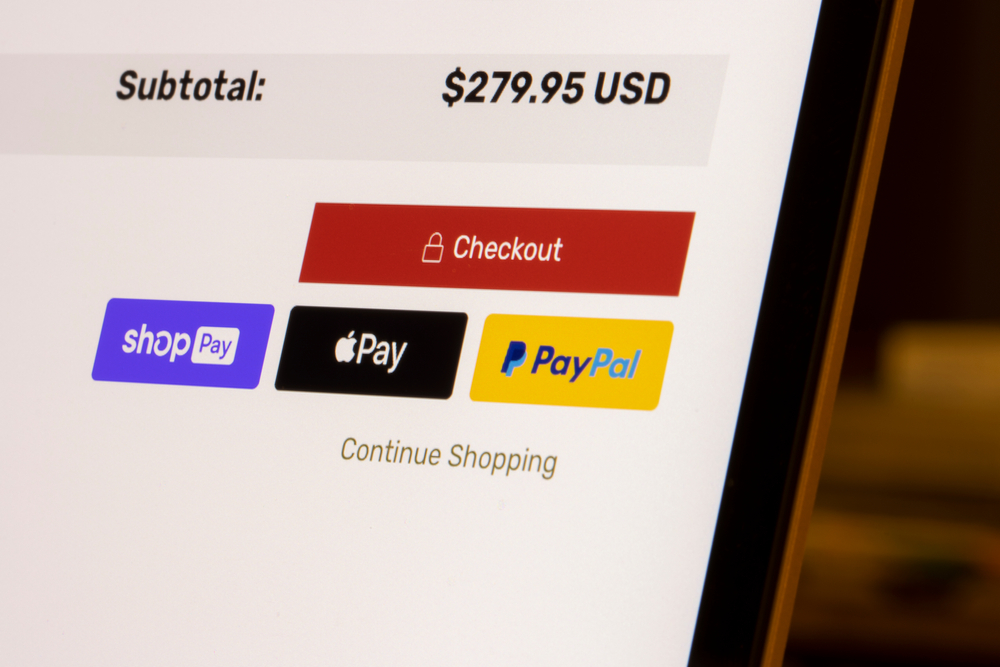
By the time someone reaches the cart, they’re committed. But cart abandonment spikes when checkout anxiety hits. Display security badges prominently near the checkout button. Payment method icons (Visa, PayPal, Apple Pay) reassure them that their payment info is safe.
Checkout Trust Badges
This is your last chance to prevent abandonment. Show SSL security badges, money-back guarantee icons, and any third-party trust certifications you have. Keep them above the fold so they’re visible without scrolling.
Navigation and Footer
General trust signals like company certifications, customer review counts, or industry badges belong in your footer or header, where they reinforce overall store credibility without cluttering product pages.
Customizing Free Badges to Match Your Brand
A generic trust badge signals authenticity but doesn’t strengthen brand trust. You need badges that look intentional and match your store’s design.
If you’re manually placing badges, customization requires CSS editing or finding SVG versions you can modify. This requires technical skill and slows down iteration.
With Essential Trust Badges & Icons, you control the design directly in the app. Adjust colors to match your brand palette, change sizes for different sections of your store, switch between icon styles (flat, outlined, solid), and update them all at once if you rebrand. You can A/B test different badge placements and designs to see which ones drive the highest conversion lift.
Tracking Impact: Do Trust Badges Actually Increase Sales?
Confirmation bias is real. You install a badge and assume it helped. Data tells a better story.
To measure actual impact, set a baseline conversion rate before adding badges. Add badges to key pages and monitor conversion metrics over the next 2-4 weeks. Most stores see a measurable lift in product page conversion rates and reduced cart abandonment, specifically after adding checkout trust badges.
If your store gets lower traffic, track the conversion rate instead of absolute sales. A 2–5% increase in conversion rate from trust badges translates directly to revenue. At $50 AOV with 1,000 monthly visitors, a 3% lift equals $1,500 in additional revenue monthly.
Use Shopify’s built-in analytics or Google Analytics to segment traffic by landing page and track which pages have trust badges vs. which don’t. This gives you clear data on whether badges move the needle in your store specifically.

Common Mistakes to Avoid
Badge overload is the biggest mistake. Displaying 10 trust badges on a single product page doesn’t increase trust – it clutters the page and creates visual noise that pushes visitors away. Use 2–3 badges per page maximum.
Mismatched badges also fail. A generic “secure checkout” badge doesn’t mean anything if your store doesn’t actually have verified security certifications. Only display badges for things you genuinely have (real SSL, actual money-back guarantee, verified customer reviews). False badges erode trust faster than no badges at all.
Outdated or expired badges hurt more than they help. If your certifications expire, remove the badges immediately. Visitors notice expired dates and lose confidence in your store entirely.
Static badge placement is a missed opportunity. Test different positions and badge combinations. What works for a jewelry store doesn’t work for a supplement brand. Iterate based on what you learn.
The Simplest Path Forward
Free trust badges exist, but piecing them together from multiple sources costs time and technical effort. The fastest way to impact conversions is using an app that bundles badges, handles the technical setup, and gives you design control in one place.
Essential Trust Badges & Icons gives you a full library of professional trust badges that install with one click, customize in minutes, and work on product pages, carts, and checkout without code. You get the results of trust badge implementation without the friction. Start for free, add badges today, and measure the conversion lift over the next month.
Frequently Asked Questions
Can I add trust badges to my Shopify store for free?
Yes. You can manually add free SSL provider badges by copying HTML code into your store, or use free/freemium apps that offer trust badges without requiring a paid subscription. Essential Trust Badges & Icons offers a free tier with a full library of professional badges that require no code to install or customize.
Where should I place trust badges on my Shopify store?
Place security and guarantee badges near your “Add to Cart” and checkout buttons where purchase hesitation is highest. Put customer review icons next to product ratings. Footer placement works for general certifications and company trust signals. Test placements and move them based on which positions drive the most conversions.
What’s the best free trust badge app for Shopify?
Essential Trust Badges & Icons is the best all-in-one option. It offers hundreds of professional badge designs, works without code, customizes in the app dashboard, and covers security, guarantees, reviews, and payment icons in one place. You get total design control and instant installation with zero technical knowledge required.
Do trust badges actually increase conversions on Shopify?
Yes, when placed strategically. Studies show trust badges increase conversion rates by 8–15% on average. Security badges reduce checkout anxiety. Money-back guarantee badges reduce purchase objections. Customer review badges build social proof. Results vary by store, product category, and trust level, so measure your own baseline and track lift after adding badges.
Can I customize the look of free trust badges?
It depends on the source. Manual SSL badges offer little customization. Free app solutions vary, but most limit color and size changes. Essential Trust Badges & Icons gives you full design control: adjust colors to match your brand, resize badges per page section, change icon styles, and update designs across your entire store instantly without touching code.