You have inventory running low, and customers are still coming. Instead of watching them leave for a competitor, you can let them lock in an order now and pay later. A pre-order button on Shopify does exactly that. It captures the sale upfront, secures future revenue, and keeps demand visible even when stock runs out.
The question isn’t whether you need a pre-order button. The question is how fast you can get one live.
We know merchants hate working with complicated pre-order apps that require code editing. Continue reading to find all the answers to your questions.
Why a Pre-Order Button Matters for Your Shopify Store
Pre-orders solve a real merchant problem: lost sales when inventory is low or a new product hasn’t launched yet. Customers see a pre-order button instead of “Out of Stock,” and they convert instead of bouncing.
This does three things for your revenue. First, it captures sales that would otherwise disappear. Second, it gives you visibility into demand before you manufacture or restock. Third, it builds anticipation around new launches and keeps the conversation with customers alive during gaps.
Without a pre-order option, an out-of-stock product is dead weight on your store. With it, it’s a revenue generator.
How to Add a Pre-Order Button on Shopify
Adding a pre-order button on Shopify requires an app. You can’t do this with code alone in most cases, and you shouldn’t spend weeks trying to build custom functionality when a proven solution exists.
The straightforward approach is to install an app, configure which products offer pre-orders, and customize the button text to match your brand. The setup takes minutes, not hours.
Step 1: Choose and Install a Pre-Order App
Start by finding an app that handles pre-orders end-to-end. You want something that lets you set pre-order dates, collect customer information, and manage orders without manual work on your end.
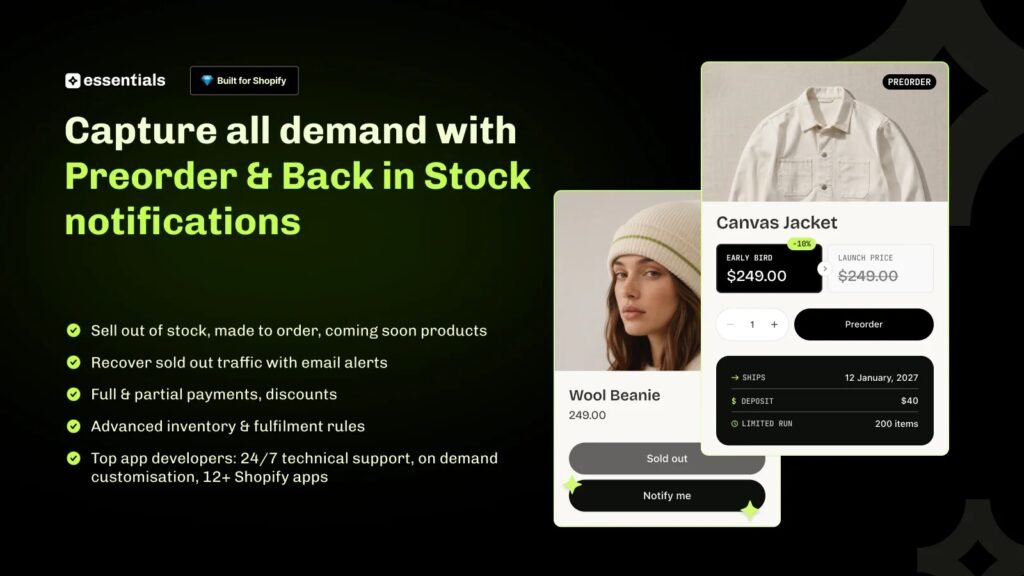
Essential Preorder Back in Stock is built specifically for this. It works out of the box and integrates directly with your Shopify store without requiring code changes or theme modifications.
Step 2: Configure Your Pre-Order Products
Once the app is installed, you’ll select which products offer pre-orders. Most apps let you set a pre-order deadline, a restock date, or a specific date when the product becomes available.
If you’re launching a new product on the 15th, you set the pre-order to end on the 14th. Customers who order before then are locked in. It’s that simple.
Step 3: Customize Button Text and Messaging
The pre-order button should tell customers what they’re getting into. “Pre-Order Now,” “Notify When Back in Stock,” or “Secure Your Order” are all clear CTAs.
You can also customize the messaging around shipping dates, payment timing, and what happens next. The clearer you are, the fewer cancellations you’ll see.
Step 4: Set Up Email Notifications
Your customers need to know when their pre-order is ready to ship. A good Shopify pre-order app sends automated notifications so customers aren’t left wondering.
You should also get notifications when pre-orders come in, so you can monitor demand in real time.
What Makes a Pre-Order Button Effective
Not all pre-order buttons are created equal. The best ones reduce friction and deliver confidence to the buyer.
Clear Timeline Communication
Customers want to know exactly when they’ll receive their order. Put the expected ship date or restock date prominently on the product page and in confirmation emails.
Vague timelines (“Coming Soon”) kill conversions. Specific dates (“Ships March 15”) close sales.
Transparent Pricing and Payment
Will the customer be charged immediately or when the product ships? If it’s a future charge, say so. If there’s a deposit, explain it.
Surprises at checkout tank pre-order conversion rates. Transparency builds trust.
Low-Friction Checkout
Pre-order customers are already taking a leap of faith. Don’t add friction with complex forms or unclear steps. Keep checkout as simple as a regular purchase.
The easier it is to pre-order, the more people will actually do it.
Pre-Order Button Strategy by Use Case
How you set up your pre-order button depends on what you’re selling.
New Product Launches
For new products, a pre-order button is your marketing hook. Set it up weeks before launch to build anticipation and generate demand data.
You’ll know exactly how many units to manufacture or order from suppliers based on real pre-order numbers. That’s more accurate than a sales forecast.
Seasonal or Limited Inventory
If you’re regularly running low on bestselling items, a pre-order button captures sales during gaps between restocks.
Instead of losing customers when you sell out, you’re converting them into future orders. The revenue is locked in. You just need to fulfill it.
High-Demand or Limited Edition Items
For exclusive drops or highly anticipated releases, a pre-order button manages demand and prevents your checkout from crashing.
Customers know they’re reserving a spot. You get revenue upfront and clear inventory expectations.
Common Pre-Order Button Mistakes to Avoid
Even with the right Shopify preorder app, mistakes kill pre-order performance.
No Clear Messaging About Wait Times
If customers don’t understand how long they’ll wait, they won’t pre-order. Always display the expected availability date next to the pre-order button.
Forgetting to Update Product Pages
Once you install a pre-order app, make sure the button actually appears on your product pages. Test it on desktop and mobile. Check that it works in different browsers.
A pre-order button that doesn’t show up is useless.
Not Communicating with Customers Post-Purchase
Send order confirmations and shipping notifications. Keep customers in the loop. Radio silence kills trust and invites support tickets.
Setting Unrealistic Restock Dates
If you promise delivery on a date you can’t hit, you’ll damage your reputation and face refund requests. Only commit to dates you can actually deliver.
How a Pre-Order Button Impacts Your Bottom Line
Adding a pre-order button on Shopify isn’t just about capturing sales. It changes your entire inventory strategy.
You get real demand data before you commit money to manufacturing or wholesale orders. You can offer products during restock windows without losing customers. You smooth revenue across months by converting out-of-stock periods into pre-order periods.
The ROI shows up fast. On average, pre-order buttons add 10-20% more revenue per product over a quarter because they eliminate the “out of stock” revenue cliff.
Getting Your Pre-Order Button Live
You don’t need to hire a developer or spend weeks on implementation. Essential Preorder Back in Stock handles the entire setup process and gets your pre-order button live on product pages within minutes.
The app works with all Shopify themes, manages the entire pre-order workflow from purchase to fulfillment, and sends automated customer notifications so you don’t have to chase orders manually.
Frequently Asked Questions
Can I add a pre-order button to specific products only?
Yes. With Essential Preorder Back in Stock, you choose exactly which products offer pre-orders and set individual dates for each product. You can have some products on pre-order while others are available for immediate shipment.
Do I need coding skills to add a pre-order button on Shopify?
No. Essential Preorder Back in Stock requires no code. You install the app, select your products, and the pre-order button appears automatically on your product pages.
What happens if a pre-order product gets cancelled?
The app handles refunds automatically. You can also set cancellation policies, so customers know what to expect if you’re unable to fulfill a pre-order for any reason.
How do I charge customers for pre-orders?
Most pre-order apps, including Essential Preorder Back in Stock, charge immediately at checkout just like a regular purchase. Some apps also offer deposit options where you charge a percentage upfront and the remainder later.
Can customers receive notifications when a pre-order product is back in stock?
Yes. Essential Preorder Back in Stock sends automated email notifications to customers when their pre-ordered product is ready to ship, so they stay informed every step of the way.