Your store is leaving money on the table if you’re not using urgency to drive conversions. A Shopify countdown widget creates that pressure without being pushy – it shows customers a real deadline and lets them decide. The best part: you don’t need to code anything.
Countdown timers work because they tap into FOMO. When someone sees a timer ticking down on a flash sale or limited-time offer, they’re more likely to buy now instead of adding to a wishlist and forgetting about it. Studies consistently show that urgency messaging boosts conversion rates, and a visible countdown widget is one of the clearest ways to communicate it.
We’re here to share all we’ve learnt about Shopify countdown widgets while spending more than 5 years building our Shopify countdown timer app. Let’s walk through how to add a Shopify countdown widget to your store and what actually helps when you do.
Why a Shopify Countdown Widget Actually Matters
Not all urgency tactics are created equal. A countdown widget isn’t just a visual element – it’s a conversion lever. When customers see time running out, they make faster decisions. That translates directly to higher conversion rates and lower cart abandonment.
The data backs this up. Merchants using countdown timers report 10-30% increases in conversions for time-sensitive offers, with some reporting up to 40%. The effect is strongest when the countdown is tied to something real: an actual sale ending, limited stock, or a genuine deadline.
A Shopify countdown widget also works across your entire store. You can run it on your homepage, product pages, checkout, or password page to reinforce the urgency message wherever customers are in their journey.
What to Look for in a Countdown Widget Solution
Not every countdown tool works the same way. Before you install anything, know what matters for your store.
No-Code Setup
You shouldn’t need a developer to turn on a timer. A good Shopify countdown widget installs and starts working immediately. Point, click, configure, done. If it requires custom code, pass.
Customizable Appearance
Your countdown timer should match your brand. That means choosing colors, fonts, messaging, and positioning that feel native to your store, not like a plug-in that was bolted on. You want customers to see urgency, not see an obvious third-party tool.
Multiple Placement Options
Different offers need different placements. A flash sale countdown belongs above the fold on your homepage. A time-limited discount code might work best in your header or on product pages. Your widget solution should let you place timers wherever they drive the most value.
Real-Time Sync
If your countdown isn’t synced to your actual sale times or stock levels, it breaks trust. A real Shopify countdown widget updates in real time, so customers always see the accurate deadline.

How to Add a Countdown Widget to Your Store
The process is fast. Here’s the standard workflow for most no-code countdown solutions.
Step 1: Install the App
Go to the Shopify App Store and find your countdown widget app. Install it on your store. You’ll authorize the app to access your store data, then you’re ready to set up.
Step 2: Create Your First Timer
Most countdown widgets let you choose what kind of timer you want. You might select a countdown to a specific date and time, or you might tie it to a sale event you’ve already created in Shopify. Pick the deadline that matches your offer.
Step 3: Customize the Design
This is where the widget becomes yours. Choose your colors, typography, and messaging. You want the timer to announce urgency without looking out of place in your store. Decide if you want it to display hours and minutes or days, hours, and minutes, depending on how much time your offer actually has.
Step 4: Choose Where It Shows
Select which pages get the countdown timer. Most merchants put it on the homepage and top-performing product pages first. You can always expand it later once you see what drives results.
Step 5: Publish and Monitor
Turn it live and watch. The best Shopify countdown widget solutions give you reporting on how the timer affects conversion rates and click-through rates. Use that data to optimize placement and messaging.
Best Practices for Countdown Widgets That Actually Convert
Installing a timer is one thing. Making it work is another. Here’s what separates timers that boost sales from timers that just sit there.
Tie It to a Real Deadline
Your countdown has to be genuine. Don’t run a “sale ends in 2 hours” timer that you reset every day. Customers will see through it, and you’ll erode trust. Real deadlines, such as actual flash sales, seasonal offers, or time-limited promotions, are the ones that move conversions.
Place It Where Eyes Are
Above the fold on your homepage reaches the most people. On product pages, put your Shopify countdown widget above the buy button so customers see the deadline before they add to cart. Test header placement if you run store-wide promotions.
Keep the Message Clear
Your timer should tell customers what’s ending and why they should care. “Flash sale ends in 1:24:37” works better than just a naked number. “Free shipping ends tonight | Order now” is stronger than just a countdown with no context.
Use Contrasting Colors
Red timers work because they stand out. Your countdown widget doesn’t need to clash with your brand, but it does need to catch attention. Test contrast in your design settings and watch which versions get clicked more.
Don’t Overuse It
A countdown timer on every section of your store waters down the urgency message. Pick your top conversion opportunities (usually homepage and bestselling products) and start there. You can always add more timers if you see positive results.
How the Essential Countdown Timer Bar Can Help
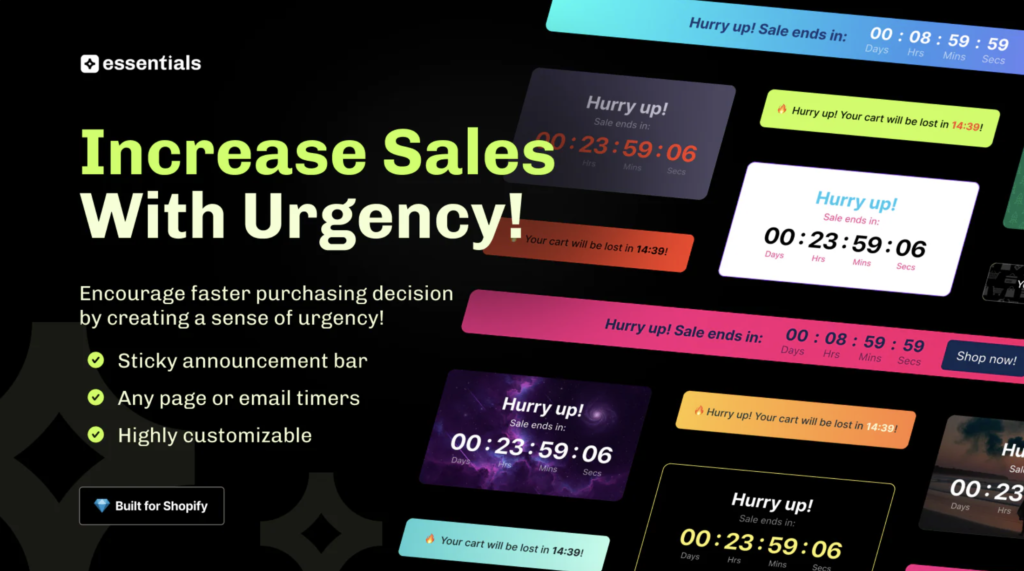
If you want a countdown widget that works without touching code, Essential Countdown Timer Bar is built exactly for this. It installs in minutes, lets you customize colors and messaging to match your store, and syncs in real time with your Shopify promotions. You get placement flexibility, real-time reporting on how the timer affects conversions, and the ability to run multiple timers for different offers at the same time.
Most merchants see immediate results because Essential Countdown Timer Bar is designed to be high-impact and high-visibility. You’re not guessing where to put it or what it should say – the app handles the setup, and you focus on watching your conversion rate climb.
Common Mistakes to Avoid
Even with a solid countdown widget, some merchants still leave conversions on the table. Watch out for these.
Setting a Timer With No Real Offer
A countdown without a sale or discount feels gimmicky. Customers will notice the timer, ignore it, and question your credibility. Always pair your Shopify countdown widget with something tangible: a percentage off, free shipping, or limited stock.
Forgetting Mobile Users
Nearly half of your traffic comes from mobile. Your countdown widget needs to be readable and tappable on small screens. Test on your phone before you launch.
Running Expired Timers
If your sale ends but the timer keeps running, customers lose trust immediately. Set reminders to update or disable timers when promotions end. A countdown widget should never show a deadline that’s already passed.
Ignoring the Data
Most countdown solutions give you conversion metrics. Use them. If a timer on your homepage drives sales but one on a specific product page doesn’t, expand what works and kill what doesn’t.
Real Results You Can Expect
The question most merchants ask: will this actually move the needle?
Yes, if you use it right. Stores using countdown widgets report an average 15-25% lift in conversion rates for offers tied to those timers. Some see higher if the offer is strong and the placement is smart. A few see minimal lift, usually because they’re running fake deadlines or burying the timer where customers don’t see it.
The key is treating your Shopify countdown widget as a conversion experiment, not a set-and-forget feature. Try it on your strongest offer first. Monitor the numbers. Double down on what works.
Adding a countdown widget is one of the fastest ways to squeeze more conversions from your existing traffic. Real, genuine deadlines create real urgency. Customers respond. Sales go up.
Essential Countdown Timer Bar handles the entire setup without code, so you can launch a countdown timer today and start testing its impact on your conversion rate immediately.
Frequently Asked Questions
Can you add a countdown timer to Shopify without an app?
You can write custom code to build one, but it requires developer work and ongoing maintenance. A no-code app is faster, easier to update, and typically more reliable. Most merchants use an app to save time and avoid code.
What’s the best placement for a Shopify countdown widget?
Above the fold on your homepage reaches the most traffic, and above the buy button on product pages converts the highest. Test both, then expand to other sections based on what your data shows. Essential Countdown Timer Bar lets you customize placement for different pages, so you can run multiple tests at once.
Does a countdown widget work for flash sales?
Yes. Flash sales are actually the ideal use case for a countdown widget because the deadline is real and urgent. Customers see the timer ticking down, know the sale is ending, and buy faster. Essential Countdown Timer Bar syncs directly with Shopify promotions, so your timer automatically matches your actual sale window.
Can I use a countdown widget for everything or just sales?
You can use it for any time-sensitive offer: sales, limited stock, free shipping deadlines, seasonal promotions, or exclusive access windows. Don’t use it for permanent offers – that kills credibility. Reserve countdowns for genuine deadlines only.
How do I know if my countdown widget is working?
Check your conversion metrics before and after launch, then again after a few weeks of data. Compare conversion rates on pages with the timer versus pages without it. Most countdown solutions, including Essential Countdown Timer Bar, give you built-in reporting so you can see exactly how the timer affects your numbers.