Your announcement bar is sitting static at the top of your store, and customers are scrolling right past it. A moving announcement bar grabs attention, creates urgency, and actually gets read. Static bars blend into the background. Motion makes them impossible to ignore.
The good news: making your announcement bar move on Shopify is straightforward when you use the right tool. Here at Essential Apps, we’ve spent more than 5 years perfecting our Shopify moving announcement bar strategy, so let us walk you through how to set it up and why motion matters for your messaging.
Why Movement Matters for Announcement Bars
A static announcement bar is visual noise. Your customers see it once, their brains filter it out, and they never process your message. Movement breaks through that filtering.
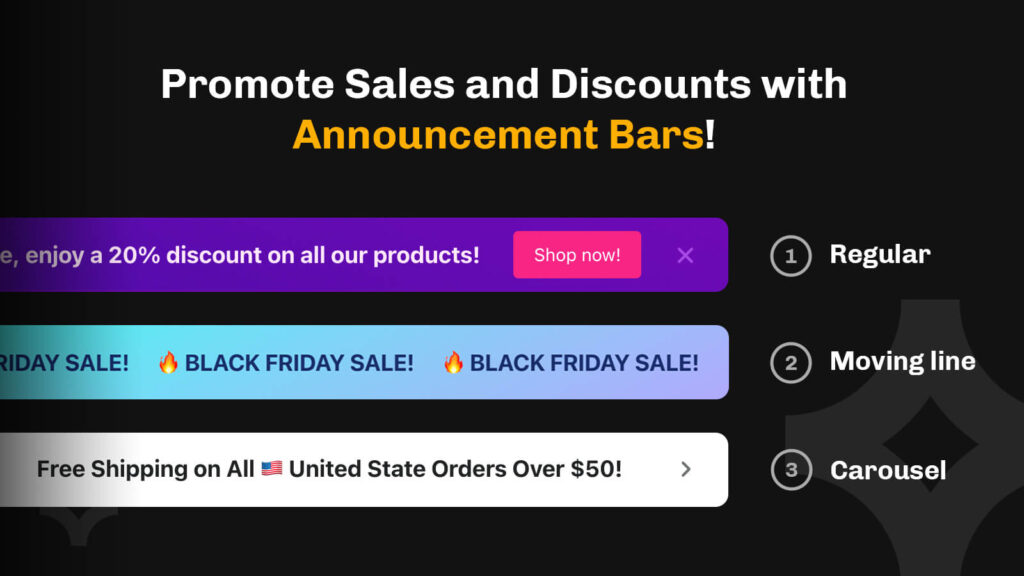
When your bar animates, be it scrolling text, sliding in, or pulsing, it creates visual urgency. This is especially powerful for time-sensitive messages like flash sales, cart abandonment notifications, or shipping deadline announcements. The motion tells visitors that something important is happening now.
Stores using animated announcement bars report higher engagement rates because the movement actually forces the message into customer awareness. It’s not intrusive. It’s effective.
How to Add Movement to Your Announcement Bar
There are a few ways to create movement in an announcement bar on Shopify. The simplest approach is to use an app built specifically for this, like Essential Announcement Bar, which includes built-in animation options that require zero code.
Option 1: Use an App with Animation Built In
Essential Announcement Bar lets you create moving text without touching code. The app includes several animation styles you can apply directly from the settings panel.
Here’s what you get:
- Scrolling text that moves horizontally across the bar
- Slide-in animations that draw attention when the page loads
- Color pulse effects that create subtle motion
- Text fade effects for softer transitions
Once you install the app, you build your bar visually, choose your animation style, and publish. The movement is live immediately across your entire store.
Option 2: Code-Based Animation (Custom CSS)
If you’re comfortable editing your theme code, you can add animation using CSS keyframes. This gives you full control but requires editing your theme’s stylesheet.
You would add a CSS animation rule to your theme’s CSS file and apply it to your Shopify announcement bar element. This method works but takes more technical effort and maintenance.
Most merchants skip this approach because app-based solutions handle it faster and don’t risk breaking other theme elements.

Step-by-Step Setup with Essential Announcement Bar
Here’s how to get a moving announcement bar on your Shopify store in about five minutes.
Step 1: Install the App
From your Shopify admin, go to Apps and click Add an app. Search for Essential Announcement Bar, install it, and grant the required permissions. The app integrates directly into your Shopify dashboard.
Step 2: Create Your Bar
Inside the app, click Create New Bar. You’ll enter your message text, choose your bar colors, and set which pages display it (homepage, all pages, specific collections, etc.).
Step 3: Choose Your Animation
This is where the motion happens. Essential Announcement Bar gives you an Animation dropdown with preset options. Select the animation that matches your message’s urgency.
For flash sales, scrolling text works great because it feels energetic. For shipping deadlines, a subtle pulse keeps the bar noticeable without being jarring. For Shopify announcement you really need people to see, a slide-in catches everyone’s attention on page load.
Check our article on Announcement Bar Examples for inspiration.
Step 4: Preview and Publish
The app shows you a live preview of how your animated bar will appear on mobile and desktop. Make sure the text reads clearly, the animation timing feels right, and the colors pop against your site background.
Once you’re satisfied, click Publish. The bar is live in your store immediately.
Animation Timing and Performance Tips
The speed of your animation matters. Too slow, and customers miss the effect. Too fast and the text becomes unreadable.
Most effective announcement bars use a scroll or slide speed between 3 and 8 seconds for a full cycle. This is fast enough to feel urgent without making customers strain to read.
Also consider animation placement. If you have multiple bars rotating through different messages, don’t animate all of them at once. Alternate between static and animated bars so the movement stays attention-grabbing instead of exhausting.
Mobile Considerations
Your announcement bar shrinks on mobile, which affects how animated text displays. Test your bar on actual phone screens before going live.
Scrolling text that works perfectly on desktop can become too fast or unreadable on a smaller screen. Essential Announcement Bar adjusts animation speeds for mobile automatically, but always verify it looks good in the preview.
What Types of Messages Work Best with Animation
Not every announcement needs motion. Use animated bars strategically to maximize their impact and keep your store from feeling chaotic.
Use Animation For:
- Time-limited offers (48-hour sale ends Sunday)
- Flash sales or surprise discounts
- Shipping deadline notifications (order by Friday for Monday delivery)
- Urgent stock warnings (only 3 items left)
- Important policy changes (new shipping rates effective date)
Keep Static For:
- Permanent messaging (free shipping over $50)
- Brand announcements (new collection available)
- Navigation links or site updates
- Compliance messages (cookies, privacy notices)
The principle is simple: animation signals urgency. Use it when your message actually has urgency attached. Your customers will learn that an animated bar means they need to pay attention, which makes the effect even stronger.
Measuring Announcement Bar Impact
You can track announcement bar performance by monitoring click-through rates and conversion impact. Essential Announcement Bar includes basic analytics showing how many visitors saw your bar and how many clicked the linked action.
Compare these metrics before and after adding animation. Most merchants see a 15-30% boost in bar engagement when they switch from static to animated messaging, depending on the message urgency and audience.
If a particular animation style isn’t driving engagement, test a different one. Some audiences respond better to subtle pulses. Others engage more with scrolling text. Your analytics will tell you what’s working.
Common Setup Mistakes to Avoid
Setting up an animated announcement bar is straightforward, but a few common mistakes can reduce effectiveness.
First, don’t animate multiple bars at once. If you rotate through three different announcements and all three animate, the constant motion becomes overwhelming and customers tune it out. Animate the most urgent message. Keep others static.
Second, don’t use animation that makes text unreadable. A scrolling bar is only effective if customers can actually read the message as it moves. Test this on your phone before publishing.
Third, don’t forget to set an expiration date if your announcement is time-limited. An animated bar promoting a sale that ended three weeks ago damages your credibility. Essential Announcement Bar lets you schedule bars to automatically turn off on specific dates.
Finally, don’t overuse animation across your entire site. One well-placed animated bar gets attention. Five animated bars create chaos. Use motion sparingly so it retains its power.
Bottom Line
A moving announcement bar is one of the fastest ways to boost visibility on your most important messages. Motion works. It’s physics and human attention, not opinion.
Essential Announcement Bar handles the technical side so you don’t have to code. You focus on the message. The app handles making it move in a way that actually gets results. Set it up, test it, and watch your announcement engagement climb.
Frequently Asked Questions
Can I animate an announcement bar without code on Shopify?
Yes. Essential Announcement Bar includes several built-in animation options (scrolling text, slides, pulses) that you apply directly from the app interface with no coding required.
How do I make text scroll horizontally in an announcement bar?
Use Essential Announcement Bar and select the scrolling text animation from the animation dropdown menu. The app handles all the CSS and timing automatically.
Does announcement bar animation slow down my Shopify store?
No. Simple CSS animations like those used in Essential Announcement Bar have a negligible performance impact on your site speed. They’re lightweight and don’t affect page load times.
What’s the best animation speed for an announcement bar?
Most announcement bars use animation speeds between 3 and 8 seconds for a full cycle. Slower speeds feel static. Faster speeds become hard to read. Test on both desktop and mobile to find what works for your audience.
Can I schedule when my animated announcement bar appears?
Yes. Essential Announcement Bar lets you set start and end dates for any bar. You can schedule a flash sale announcement to appear and animate only during the sale period, then automatically disappear when it ends.